Tuesday, May 31, 2016

HOW TO CREATE QUICK SKETCH EFFECT?

MAKE QUICK SKETCHES ....Take one photo and turn it into a drawing!

BEFORE

AFTER


Photoshop has a few tricks up its sleeve to make the task easier. When it comes to making a digital sketch, your new best friends will be the High Pass filter and the Threshold command. While these two are fairly innocuous on their own, when brought together they seek out the outline of a photo and then turn it into a sketch.

  • Find the edges Open up your photo in Photoshop. If your image is lacking contrast, use Levels or Curves to do some boosting. 

  • Now go to the Filter menu, down to Other and pick High Pass.

  • Edit with the slider Your image will turn a peculiar colour – do not panic! The High Pass Filter is for you to seek out the edges of your image. Use the Radius slider to adjust this – the higher you go the thicker the lines will be. Go for something like 3.0 or as you desired.
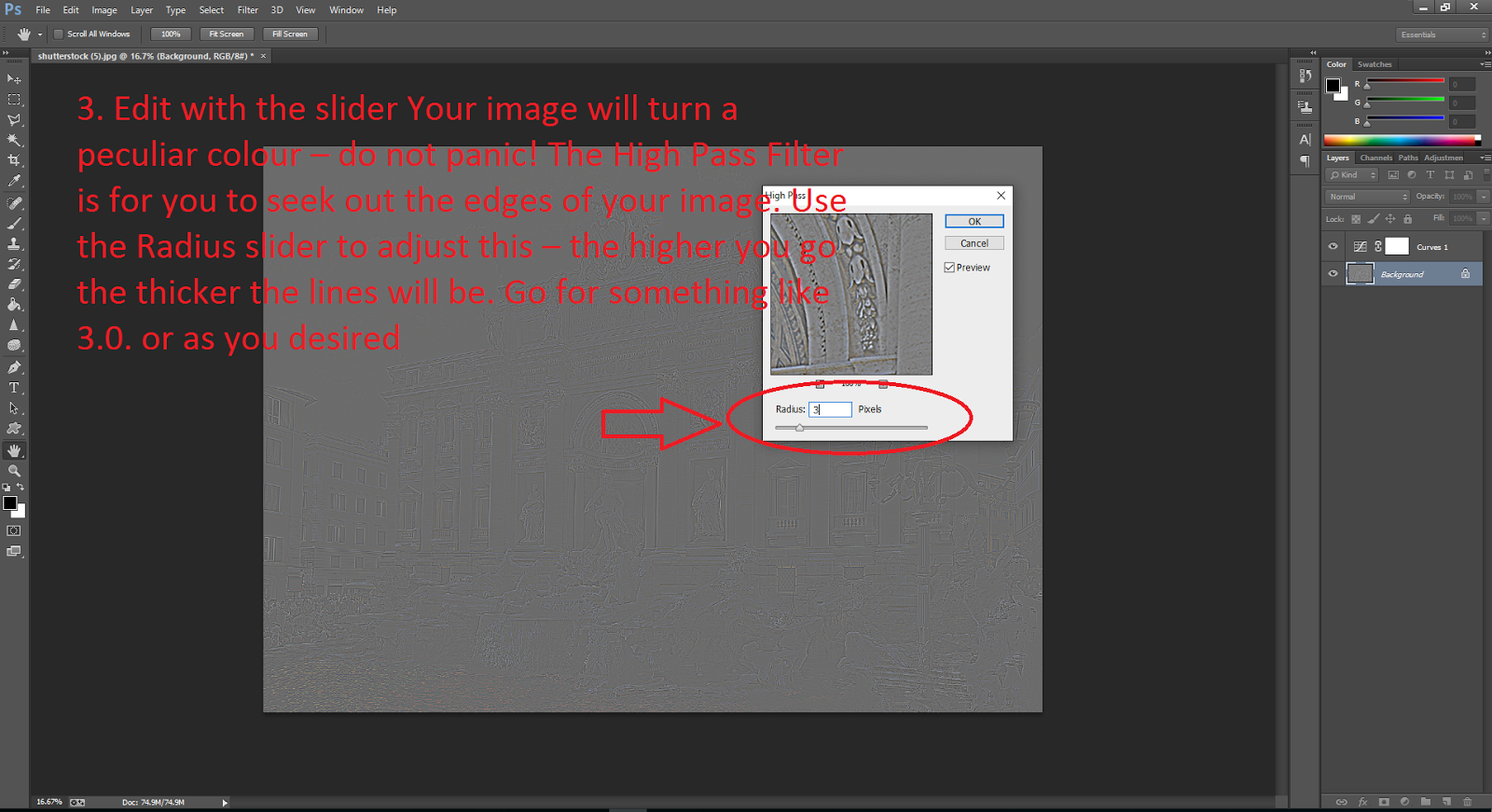


  • Pencil effect Click OK to exit the High Pass Filter. 
  • Next stop is the Image menu and then Adjustments>Threshold. This will turn your image to black and white and once again, there is a slider to edit the effect. 
  • Remember he higher the setting the more intense the e ffect. 

  • Click OK when you are happy.

HOW TO MAKE A MOTION BLUR IN PHOTOSHOP CS6

Motion Blur is great for simulating movement in a subject otherwise frozen on camera. You can either blur the edges of the subject itself or the background.


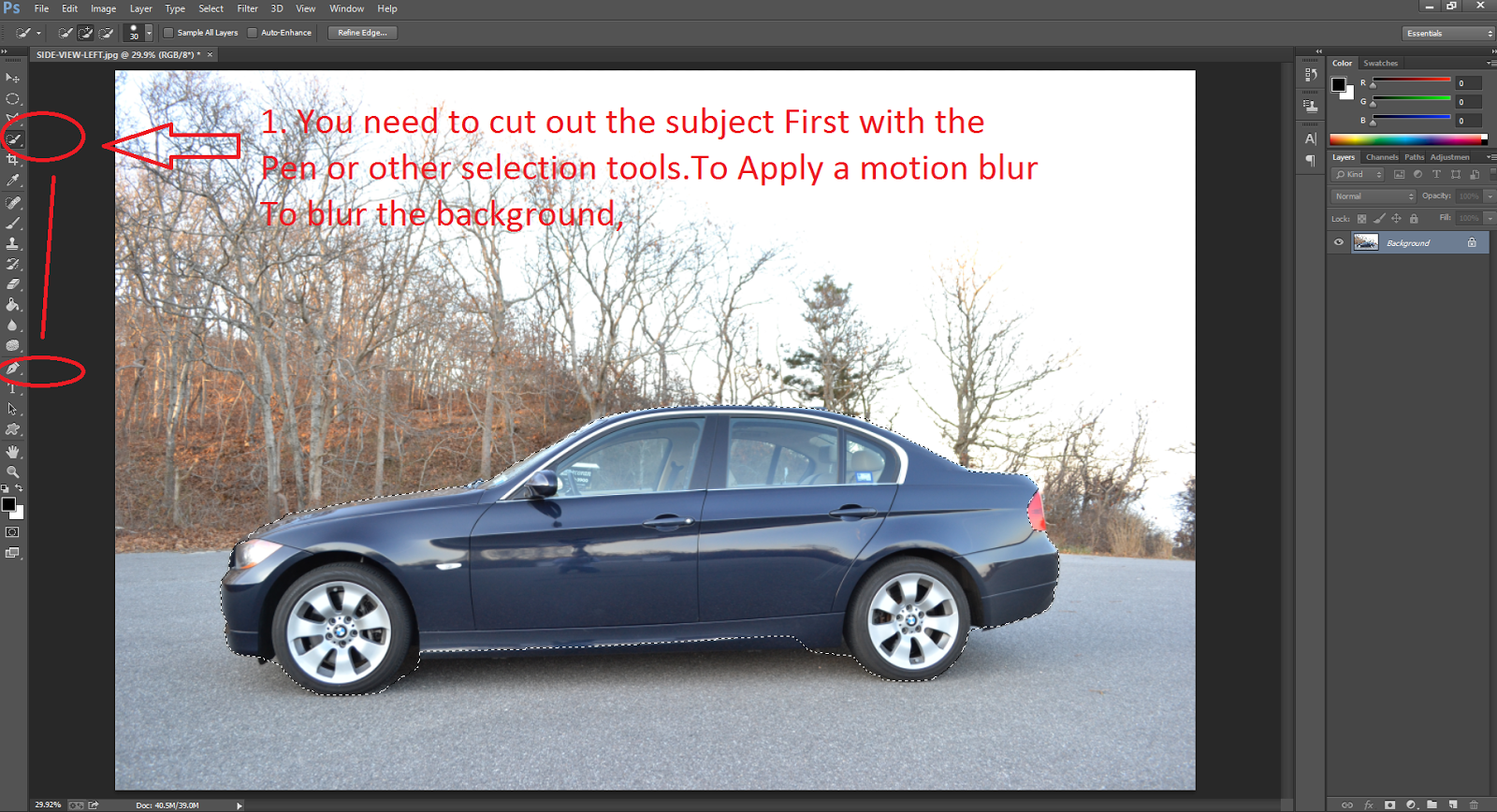
  • You need to cut out the subject First with the Pen or other selection tools.To Apply a motionblur To blur the background,

  • Inverse the selection with Ctrl/Cmd+Shift+I and 

  • float to a new layer with Ctrl/Cmd+J. 

  • Now select the layer and run Filter>Blur>Motion Blur. 
  • Choose the correct Angle and Distance to suit your image.

Monday, May 30, 2016

HOW TO CREATE AUTHENTIC LENS BLUR USING PHOTOSHOP CS6


To create true-to life lens blurring use Photoshop’s Lens Blur filter with a mask: 


  • Use the Quick Selection tool or any selection tools to select the subject you want to keep in focus.


  • Use Refine edge and adjust the feather as you desire for a smooth edge
  • Go to Filter>Blur>Lens Blur and, in the menu,


  • Set Source to None and tick Invert. 
  • Adjust the Radius and Shape of the blurring depending on the style of lens.

  • Hit OK


Sunday, May 29, 2016

HOW TO CREATE WATERMARK IN YOUR IMAGES


To watermark an image:

  • Select the Type tool (T) and choose a thick font. 

  • Set your Foreground swatch to black. 
  • After typing a name or message onto your image, 

  • Change the type layer’s blend mode to Screen. 
  • Your text will turn invisible, so double-click the layer to open the Layer Styles dialog and 
  • Apply a subtle Bevel and Emboss to reveal the watermark.


Thursday, May 26, 2016

HOW TO IMPROVE REFLECTIONS


To increase the impact of reflection:


Duplicate the Background layer and


Go to Edit>Transform>Flip Vertical.


Reduce the layer’s Opacity as you desired and


Use the Rectangular Marquee tool to mark a selection over an object on the upside-down duplicate. Hit Ctrl/Cmd+J to move this object to its own layer and then hide the duplicated Background layer. 
Position the reflection of the object under its original and rotate if you need to using Ctrl/Cmd+T. 


Use the Eraser tool set to 0% Hardness to remove the surroundings on the reflection's layer.


Wednesday, May 25, 2016

HOW TO SHARPENED IMAGE USING HIGH PASS


There are quite a few different ways to sharpen an image in Photoshop, but High Pass filter is easy & fast . 


  1. Duplicate your Background layer and go to Filter>Other>High Pass. 


  1. Slide the Radius adjustment until you start to see details in the grey areas appear. 
  2. Hit OK and 

  1. Then set the layer’s blend mode to Hard Light. 


  1. You should see the image sharpen up, 
  2. But if it’s too much, lower the Opacity of the layer in small amounts.


Tuesday, May 24, 2016

How to Convert Image into Black & White


1. Prepare and layer


  •  Begin by opening your image in Photoshop.
  • Go to the Layers palette and Ctrl/right-click on the Background layer. 
  • Select Duplicate Layer and 
  • rename it Black and White – this way you won’t make an destructive adjustments to your original photograph.

2. Conversion

  • Go to Image>Adjustments>Black & White. 
  • This will open the Black and White adjustment feature. 
  • Select the custom preset and 
  • begin by adjusting the Red channel. 
  • Use the Preview button and 
  • Slowly drag the slider up to your desire

3. Channel adjustments

  • Move down to the Yellow channel, which will most notably affect the model’s skin tone and the overall brightness of the natural sunlight.
  • Bring the slider up to around 86%, as this will help to contrast the red tones and give a more striking black and white result.

4. Bring out the background

  • Continue to adjust all the channel sliders. Lighten the Green to bring back some detail from the background bushes to around 57%. 
  • Work slowly with the Magenta as there are a lot of di fferent red and magenta tones here, which could create a posterisation effect.
  • Settle the slider at around 75%.